Advanced Navigation
Simple Page supports two sidebars that help visitors navigate your site:
- A Navigation Sidebar on the left — shows your site's page structure
- A Table of Contents on the right — shows the current page's heading outline
Both sidebars collapse into a toggle button on mobile and expand by default on desktop when there's enough space. This page has both enabled, so you can see them in action.
Table of Contents (Right Sidebar)
The Table of Contents generates an outline from your page's markdown headings (#, ##, ###, etc.). Clicking a heading in the sidebar scrolls the page to that section.
Enable it by adding this to the page's frontmatter:
sidebar-toc: true
What Gets Included
Every heading level from ## down is listed. The page title (#) is not repeated in the sidebar. The hierarchy nests visually — ### headings appear indented under their parent ##.
Example
This markdown:
# API Documentation
## Authentication
### Sign In
### Sign Out
## Endpoints
### GET /posts
### POST /posts
Produces a right sidebar with:
Authentication
  Sign In
  Sign Out
Endpoints
  GET /posts
  POST /posts
The ToC updates when you scroll — the current section highlights automatically.
Navigation Sidebar (Left Sidebar)
The Navigation Sidebar shows links to pages across your site. It mirrors your folder structure and can be ordered with priority values.
Enable it by adding this frontmatter key to every page you want in the sidebar:
sidebar-nav-prio: <number>
Priority Rules
- Lower numbers appear higher in the sidebar
- Priorities are compared within the same folder level — a page at
/docs/api/withprio: 10is only compared to other pages under/docs/ - Pages without
sidebar-nav-prioare not shown in the sidebar at all
How Folders Map to Categories
Your folder structure determines the sidebar grouping:
| Page path | Category | Depth |
|---|---|---|
/docs/api/ |
docs | Top-level |
/docs/components/ |
docs | Top-level |
/docs/components/node/ |
components | Nested (collapsed) |
/docs/components/frontend/ |
components | Nested (collapsed) |
Nested categories (like components/node) appear collapsed until the visitor clicks to expand them.
Categories With and Without Pages
- If
/docs/has its ownindex.mdwithsidebar-nav-prio, it becomes a clickable category heading — clicking it loads that page - If
/docs/has noindex.md, it appears as a non-clickable label — just a group title with its children listed below
Example: Folder Structure to Sidebar
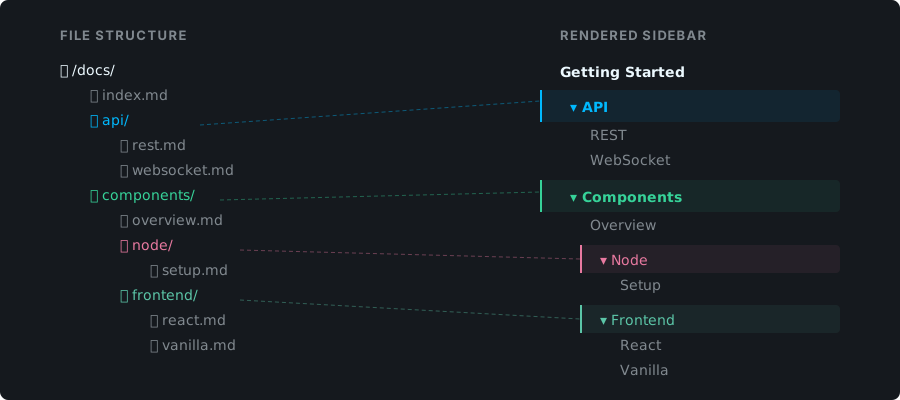
Given this structure with the indicated priorities:
/architecture/api/                    (sidebar-nav-prio: 10)
/architecture/components/             (sidebar-nav-prio: 20)
/architecture/components/node         (sidebar-nav-prio: 1)
/architecture/components/frontend     (sidebar-nav-prio: 2)
/architecture/design-principles/      (sidebar-nav-prio: 30)
The left sidebar renders:
Architecture
 ├─ API
 ├─ Components
 │   ├─ Node
 │   └─ Frontend
 └─ Design Principles
Putting It All Together
Think of the two sidebars as complementary maps:
[ Left Sidebar ] (site map)          [ Right Sidebar ] (page map)

Architecture                         API
 ├─ API                               ├─ Authentication
 ├─ Components                        │   ├─ Sign In
 └─ Design Principles                 │   └─ Sign Out
                                      └─ Endpoints
                                          ├─ GET /posts
                                          └─ POST /posts
- Left Sidebar = how pages are organized across your site
- Right Sidebar = how sections are organized within a single page
Both Sidebars Enabled
To show both sidebars on a page, include both keys in the frontmatter:
---
sidebar-toc: true
sidebar-nav-prio: 10
---
Neither Sidebar
A page with no sidebar frontmatter shows content only — no navigation chrome. This is the default and works well for simple single-page sites.